
Booting ThinC-COMPUTE
After registering the fingerprint disconnect and reconnect ThinC-COMPUTE device. Post Authenticating to the device, ThinC-COMPUTE will automatically initialize the device and gets enumerated in current OS.
The drive can be viewed in Microsoft Windows File explorer after device is connected and authenticated.
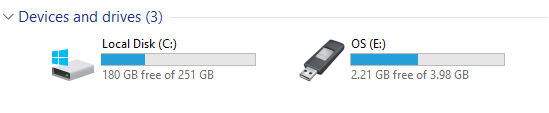
- Restart the computer and boot to Boot Manager and select USB storage device / ThinC USB device from the list of options.
For IBM compatible systems (runs on Windows or Linux), the system needs to be configured to boot with USB. Check your System BIOS to enable USB booting. Refer to computers manufacture user guide for appropriate boot configuration key. Keep tapping the boot configuration key repeatedly during the initial startup screen to enter the Boot Manager. Example boot configuration keys "F12" or "F10" or "F11" or "Del" |
For Apple macOS based systems iMAC/Pro, MAC Book/Pro/Air/Mini press and hold "ALT" key while powering on the MAC. Select "EFI Boot" to boot further |
|
|
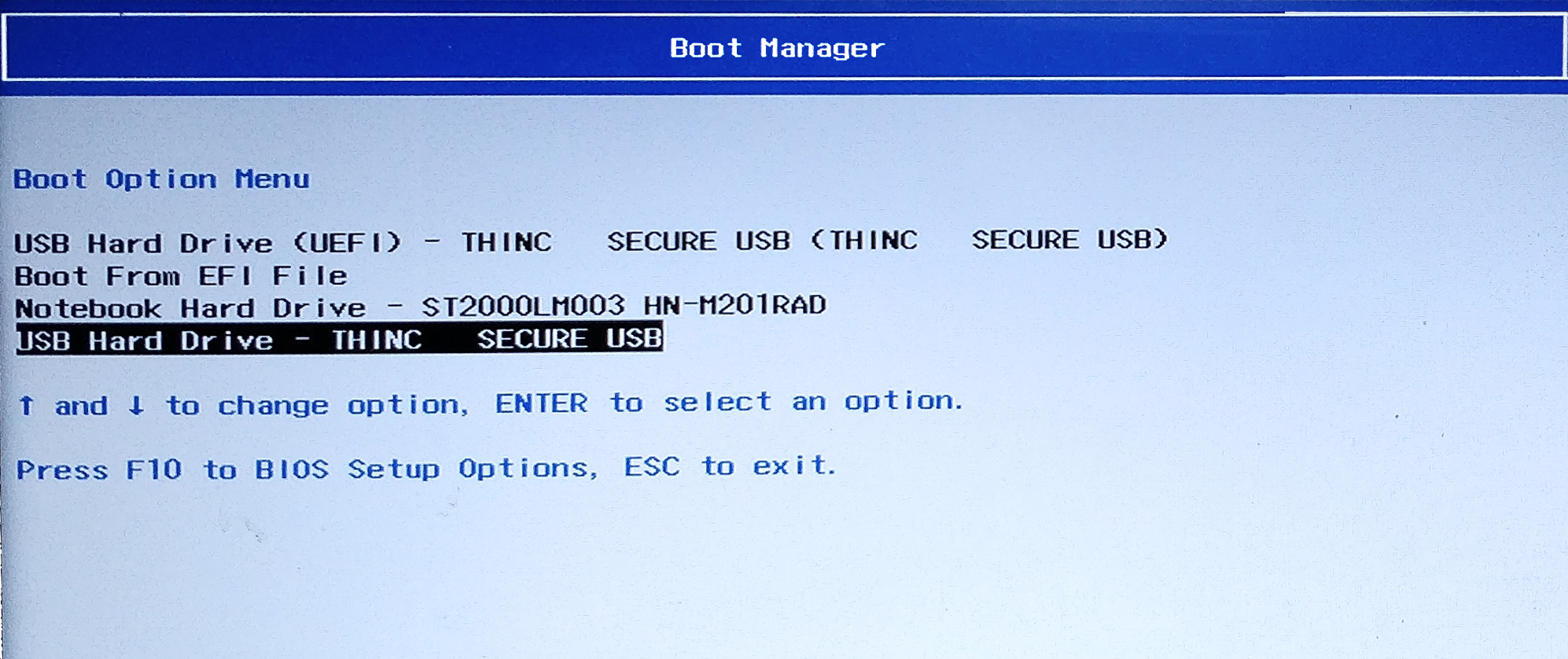
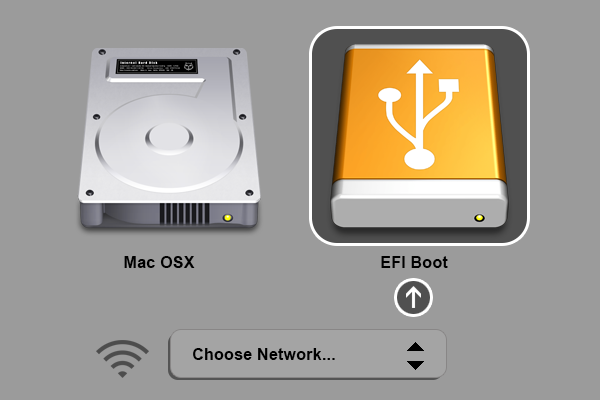
 The above screens displays the typical boot manager screen. Boot manger options may vary with regards to the system manufacturer
- Select "USB Hard Drive ThinC Secure USB" (or equivalent as displayed in your system) to boot ThinC-COMPUTE Secure OS.

BIOS based alternate procedure
- Goto BIOS setup (typical via pressing Del key during boot up).
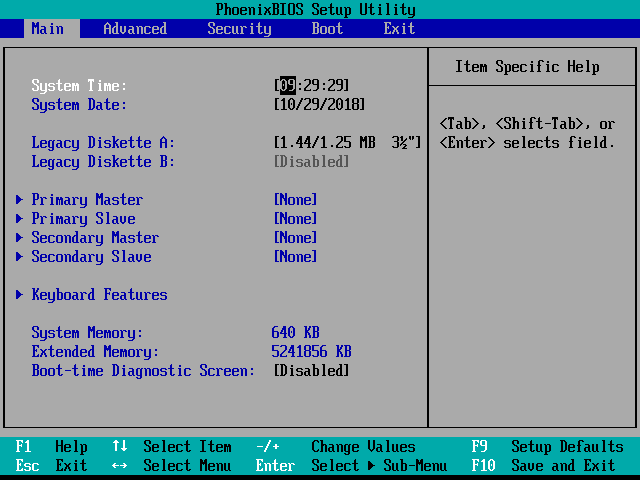
- Use the arrow keys to select the BOOT tab. Move the ThinC USB device to the top of the list of hard drives.
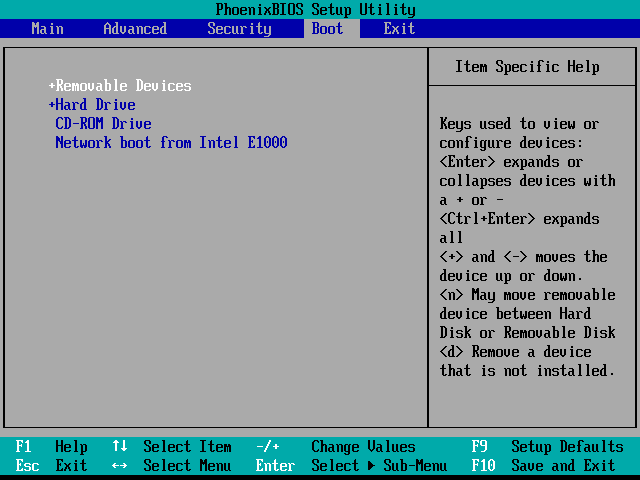
- Save and exit the BIOS setup utility. The computer will restart with the changed settings.
Shutting down ThinC-COMPUTE secure OS.
- To shutdown secure OS safely, click on shutdown button at top right corner of the task-bar.
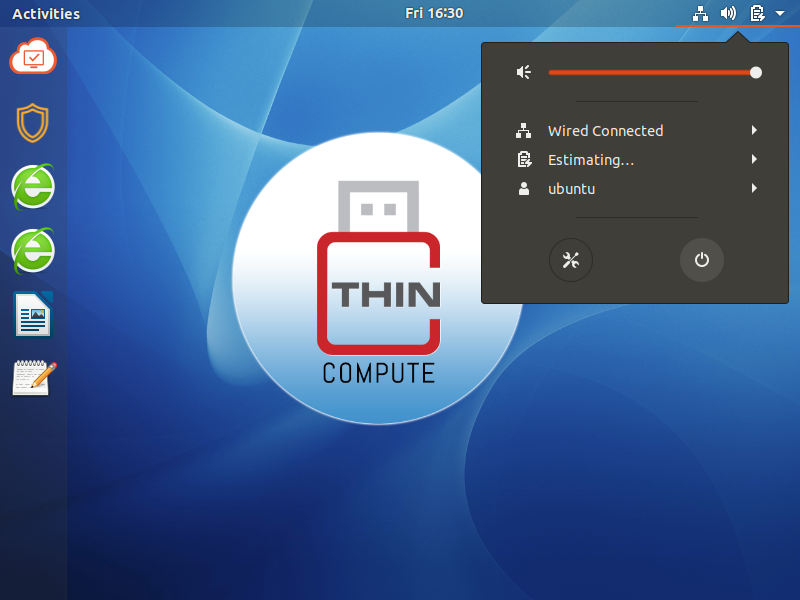
- Click on Shutdown button to power off ThinC-COMPUTE Secure OS.
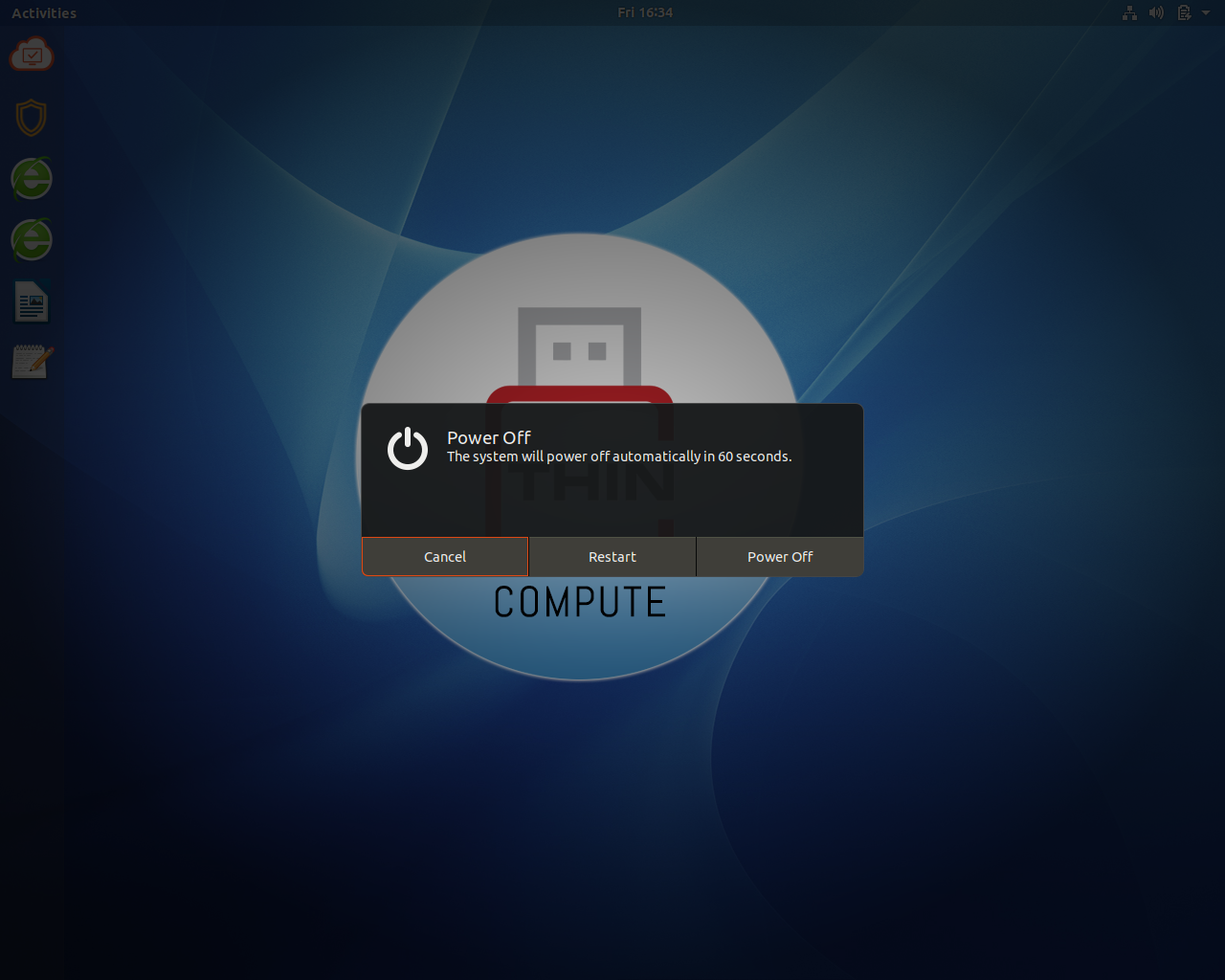
- After shutting down of secure OS, disconnect the ThinC-COMPUTE device and boot the computer to original operating system on the desktop / laptop.
|